
Editor Settings Window
The Editor Settings window lets you configure FludeX's project defaults from the Unity Editor, without entering Play Mode and without writing code. Core and Console get full settings pages; every other module gets a simple page with its identity and links.
Opening It
Choose Window → FludeX → Settings. The window has a sidebar listing Core first, then every installed module in its sort order (disabled modules are listed too, so you can still browse their settings), each with its version. Select an entry to open its page. Drag the divider to resize the sidebar — the width is remembered between Editor sessions.
What You Can Configure
| Entry | What it offers |
|---|---|
| Core | The same settings as the runtime Core Settings — Initial Module, Widgets, Notification Stack, Haptics, Danger Zone, About and Links — plus a Default Trigger picker (see below) |
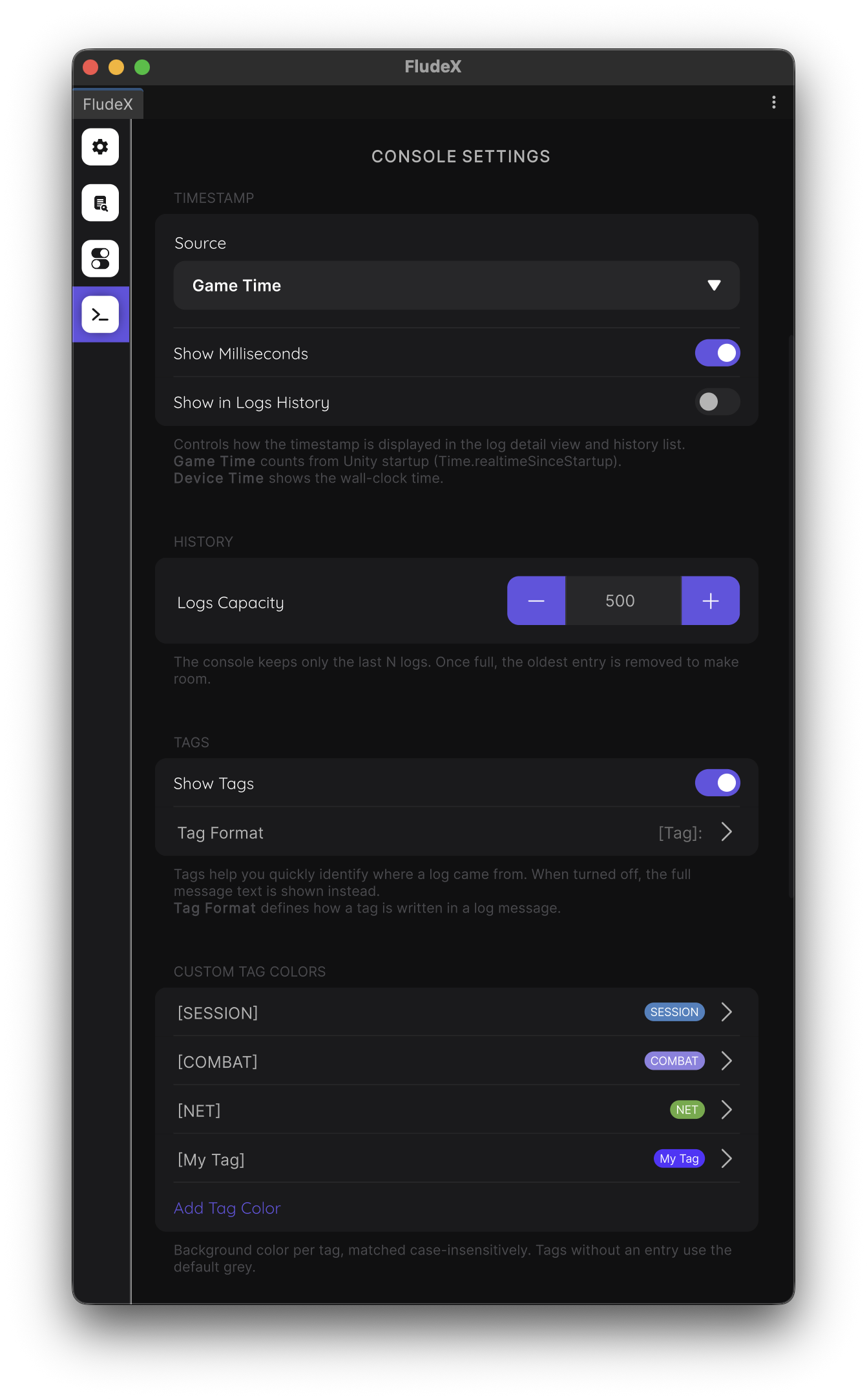
| Console | Alert rules (add, edit, delete), timestamp display, log history capacity, tags (format and per-tag colors) and haptics — the defaults behind Console |
| Other modules | A simple page with the module's identity and links |
The runtime Core Settings Trigger → Setup page isn't part of the Core page here: tuning a trigger's position, size and opacity is a per-device, on-screen activity. What the window offers instead is which trigger type a project starts with.
Default Trigger
The Default Trigger picker chooses which trigger FludeX opens with. Leave it on its "none" entry to let FludeX decide — the Sticky Trigger for a new install, or the trigger a device already used before. A trigger you pass explicitly to Initialize(trigger) in code still takes priority over this picker. See the exception in Configuration Layers for the full order.
How The Values Are Used
What you set here are the Editor defaults — layer 1 of Configuration Layers:
- They're stored in your project's
ProjectSettingsfolder, so they're part of the project but not of yourAssets. - They're copied into every build automatically, so devices receive them without extra steps.
- They're read when FludeX starts: a change made in the window takes effect the next time the app or Play Mode starts.
- They're only the default. A player who has changed a setting on their device keeps their value, while every setting they haven't touched follows your default — including when you change the default in a later release.
- If your code passes a
FludexConfig(orConsoleModuleConfiguration) toInitialize(), that object is used instead of the corresponding Editor defaults — see Configuration Layers.
Resetting
The Danger Zone → Reset Settings button on the Core and Console pages restores that page's settings to FludeX's built-in values, after a confirmation dialog. In the window this resets the project's Editor defaults; it doesn't touch what a player has stored on a device.